Why handpick?
Your buyer wants a one-story under $400K near good schools. The filters still return 60 homes, and half aren’t a real fit.
Sending all 60 makes you look like a search engine.
Sending the right 3 makes you look like a pro who listened.
1Homes
Turn on Pick Homes
Filter first if you like. It’s optional, but it makes picking faster.
Then click Pick Homes at the top right, just above Save Search. You can also start from Lead Gen or a client’s page.


1,284 HOMES
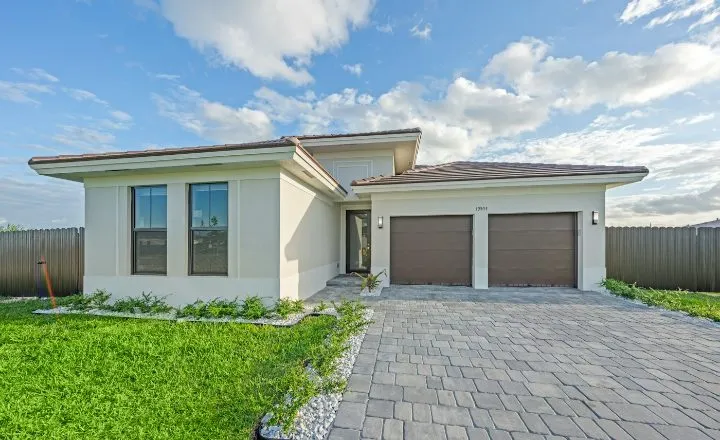 CYPRESSHOMES14 Juniper BendOak TerraceConroe, TX$587,400 Move In Ready4 bds · 3.5 ba · 2690 sqft
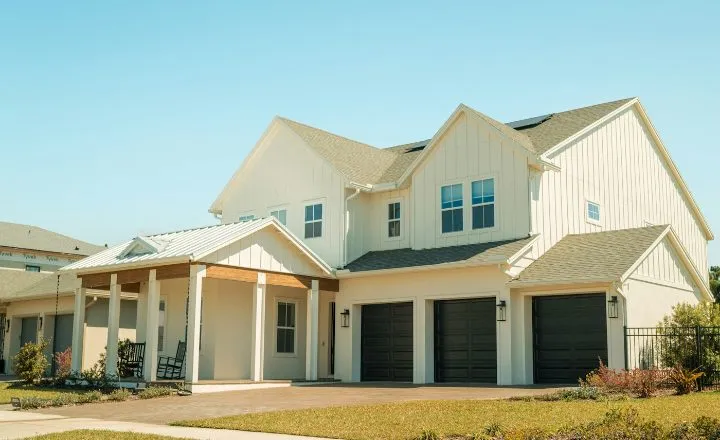 MEADOWCRESTHOMES309 Cedar ShoalsPine HollowConroe, TX$398,900 Move In Ready3 bds · 2 ba · 1880 sqftHARBOR OAKHOMESAsterStillwater RanchMontgomery, TXStarting from $449,9904 bds · 3 ba · 2480 sqft
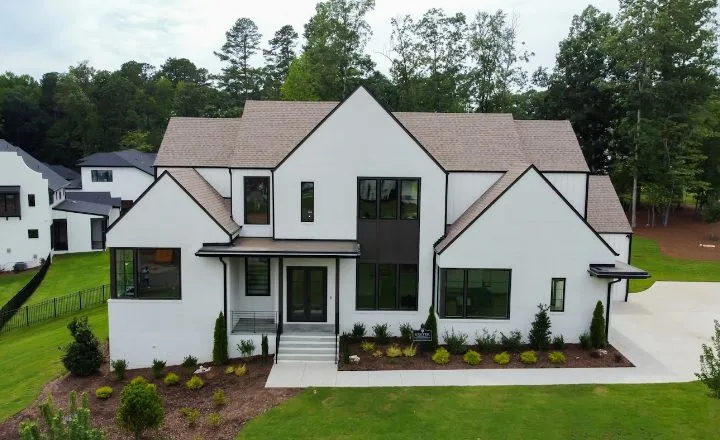 LARKSPURHOMES2207 Briar GlenPine HollowConroe, TX$412,500 Under Construction4 bds · 2.5 ba · 2215 sqft
1
2
3 SELECTED HOMESFIND AND UPDATE SELECTED HOMES
1
2
3 HOMES
1,284 HOMESClear Selected Homes
CYPRESSHOMES14 Juniper BendOak TerraceConroe, TX$587,400 Move In Ready4 bds · 3.5 ba · 2690 sqftMEADOWCRESTHOMES309 Cedar ShoalsPine HollowConroe, TX$398,900 Move In Ready3 bds · 2 ba · 1880 sqftHARBOR OAKHOMESAsterStillwater RanchMontgomery, TXStarting from $449,9904 bds · 3 ba · 2480 sqftLARKSPURHOMES2207 Briar GlenPine HollowConroe, TX$412,500 Under Construction4 bds · 2.5 ba · 2215 sqft3 HOMESClear Selected Homes
CYPRESSHOMES14 Juniper BendOak TerraceConroe, TX$587,400 Move In Ready4 bds · 3.5 ba · 2690 sqftHARBOR OAKHOMESAsterStillwater RanchMontgomery, TXStarting from $449,9904 bds · 3 ba · 2480 sqftLARKSPURHOMES2207 Briar GlenPine HollowConroe, TX$412,500 Under Construction4 bds · 2.5 ba · 2215 sqft2Pick mode
Pick your homes
Click Add on a home. It gets a green Selected badge, and the button counts up: Save 3 Homes.
Know the address? Use Find homes by address at the top. You can also open a home and add it from its details.
1,284 HOMES
CYPRESSHOMES14 Juniper BendOak TerraceConroe, TX$587,400 Move In Ready4 bds · 3.5 ba · 2690 sqftMEADOWCRESTHOMES309 Cedar ShoalsPine HollowConroe, TX$398,900 Move In Ready3 bds · 2 ba · 1880 sqftHARBOR OAKHOMESAsterStillwater RanchMontgomery, TXStarting from $449,9904 bds · 3 ba · 2480 sqftLARKSPURHOMES2207 Briar GlenPine HollowConroe, TX$412,500 Under Construction4 bds · 2.5 ba · 2215 sqft1
2
3 SELECTED HOMESFIND AND UPDATE SELECTED HOMES
1
2
3 HOMES
1,284 HOMESClear Selected Homes
CYPRESSHOMES14 Juniper BendOak TerraceConroe, TX$587,400 Move In Ready4 bds · 3.5 ba · 2690 sqftMEADOWCRESTHOMES309 Cedar ShoalsPine HollowConroe, TX$398,900 Move In Ready3 bds · 2 ba · 1880 sqftHARBOR OAKHOMESAsterStillwater RanchMontgomery, TXStarting from $449,9904 bds · 3 ba · 2480 sqftLARKSPURHOMES2207 Briar GlenPine HollowConroe, TX$412,500 Under Construction4 bds · 2.5 ba · 2215 sqft3 HOMESClear Selected Homes
CYPRESSHOMES14 Juniper BendOak TerraceConroe, TX$587,400 Move In Ready4 bds · 3.5 ba · 2690 sqftHARBOR OAKHOMESAsterStillwater RanchMontgomery, TXStarting from $449,9904 bds · 3 ba · 2480 sqftLARKSPURHOMES2207 Briar GlenPine HollowConroe, TX$412,500 Under Construction4 bds · 2.5 ba · 2215 sqft3Pick mode
Review your shortlist
Click View 3 Selected Homes to see only your picks.
Want to start over? Click Clear Selected Homes.
1,284 HOMES
CYPRESSHOMES14 Juniper BendOak TerraceConroe, TX$587,400 Move In Ready4 bds · 3.5 ba · 2690 sqftMEADOWCRESTHOMES309 Cedar ShoalsPine HollowConroe, TX$398,900 Move In Ready3 bds · 2 ba · 1880 sqftHARBOR OAKHOMESAsterStillwater RanchMontgomery, TXStarting from $449,9904 bds · 3 ba · 2480 sqftLARKSPURHOMES2207 Briar GlenPine HollowConroe, TX$412,500 Under Construction4 bds · 2.5 ba · 2215 sqft1
2
3 SELECTED HOMESFIND AND UPDATE SELECTED HOMES
1
2
3 HOMES
1,284 HOMESClear Selected Homes
CYPRESSHOMES14 Juniper BendOak TerraceConroe, TX$587,400 Move In Ready4 bds · 3.5 ba · 2690 sqftMEADOWCRESTHOMES309 Cedar ShoalsPine HollowConroe, TX$398,900 Move In Ready3 bds · 2 ba · 1880 sqftHARBOR OAKHOMESAsterStillwater RanchMontgomery, TXStarting from $449,9904 bds · 3 ba · 2480 sqftLARKSPURHOMES2207 Briar GlenPine HollowConroe, TX$412,500 Under Construction4 bds · 2.5 ba · 2215 sqft3 HOMESClear Selected Homes
CYPRESSHOMES14 Juniper BendOak TerraceConroe, TX$587,400 Move In Ready4 bds · 3.5 ba · 2690 sqftHARBOR OAKHOMESAsterStillwater RanchMontgomery, TXStarting from $449,9904 bds · 3 ba · 2480 sqftLARKSPURHOMES2207 Briar GlenPine HollowConroe, TX$412,500 Under Construction4 bds · 2.5 ba · 2215 sqft4Pick mode
Save and share
Click Save 3 Homes and choose a type:
- Client Search: private, for one buyer you know. Pick or create the client.
- Lead Gen Search: public, to find new clients.
Name it, then copy the link and send it.
1,284 HOMES
CYPRESSHOMES14 Juniper BendOak TerraceConroe, TX$587,400 Move In Ready4 bds · 3.5 ba · 2690 sqftMEADOWCRESTHOMES309 Cedar ShoalsPine HollowConroe, TX$398,900 Move In Ready3 bds · 2 ba · 1880 sqftHARBOR OAKHOMESAsterStillwater RanchMontgomery, TXStarting from $449,9904 bds · 3 ba · 2480 sqftLARKSPURHOMES2207 Briar GlenPine HollowConroe, TX$412,500 Under Construction4 bds · 2.5 ba · 2215 sqft1
2
3 SELECTED HOMESFIND AND UPDATE SELECTED HOMES
1
2
3 HOMES
1,284 HOMESClear Selected Homes
CYPRESSHOMES14 Juniper BendOak TerraceConroe, TX$587,400 Move In Ready4 bds · 3.5 ba · 2690 sqftMEADOWCRESTHOMES309 Cedar ShoalsPine HollowConroe, TX$398,900 Move In Ready3 bds · 2 ba · 1880 sqftHARBOR OAKHOMESAsterStillwater RanchMontgomery, TXStarting from $449,9904 bds · 3 ba · 2480 sqftLARKSPURHOMES2207 Briar GlenPine HollowConroe, TX$412,500 Under Construction4 bds · 2.5 ba · 2215 sqft3 HOMESClear Selected Homes
CYPRESSHOMES14 Juniper BendOak TerraceConroe, TX$587,400 Move In Ready4 bds · 3.5 ba · 2690 sqftHARBOR OAKHOMESAsterStillwater RanchMontgomery, TXStarting from $449,9904 bds · 3 ba · 2480 sqftLARKSPURHOMES2207 Briar GlenPine HollowConroe, TX$412,500 Under Construction4 bds · 2.5 ba · 2215 sqftSave and Share 3 Homes
1Search Type2Name Search3Share Search
Choose Your Search Type
What kind of search are you creating?
Find New Clients (Lead Gen Search)
Create for a Specific Client (Client Search)
Name your search
This name will show up on the shared link and in your portal.
CANCELBACKNEXTCREATE SEARCH
5Your shared link
What your buyer sees
Only the homes you picked. They can’t filter or sort to see others.
When your client views or favorites a home, it shows up under Activity and in your Recent Activity email. Tour and info requests come to you by email. On a Lead Gen Search, visitors who sign up become new leads.
Your list isn’t locked. Add or remove homes any time.
Top 3 for the GarciasPrepared by Natalie BrooksSearch homes by address3 HOMES
CYPRESSHOMES14 Juniper BendOak TerraceConroe, TX$587,400 Move In Ready4 bds · 3.5 ba · 2690 sqftHARBOR OAKHOMESAsterStillwater RanchMontgomery, TXStarting from $449,9904 bds · 3 ba · 2480 sqftLARKSPURHOMES2207 Briar GlenPine HollowConroe, TX$412,500 Under Construction4 bds · 2.5 ba · 2215 sqftTips
- Pick the same day you talk
Build the list right after the call, while it’s fresh for both of you.
- Keep it short
Three to five homes feels curated. Twenty feels like homework.
- Name it for the buyer
“Top 3 for the Garcias” beats “Search #14” every time.
- Reps: build a “just my homes” list
Handpick the homes you sell, then drop the link in a text or email.
- Refresh it weekly
Swap in new inventory so buyers have a reason to click again.


