Lesson 1
What is New Home Buddy for agents?
New Home Buddy is built for selling new construction. Every home and plan comes straight from the builder, with the incentives agents need and other sites don’t show: agent commission, bonus to selling agent, builder-paid closing costs and interest rate. Share links branded to you, and everyone who signs up on them becomes your lead. The core platform is free, in five Texas markets.

 Natalie Brooks’s New Home SearchPrepared by Natalie BrooksSearch homes by address
1,284 HOMES
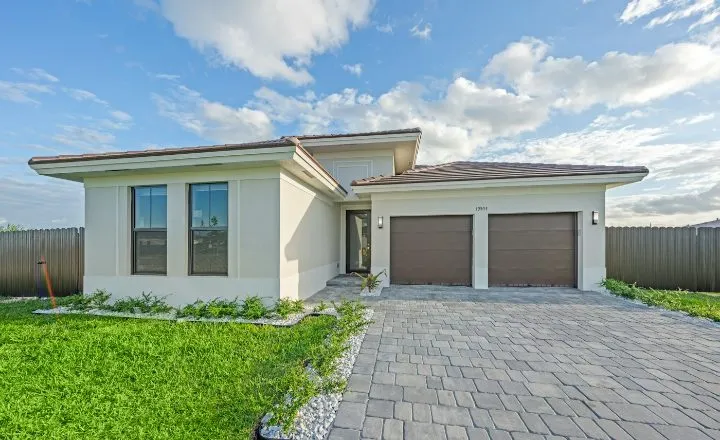 CYPRESSHOMES14 Juniper BendOak TerraceConroe, TX$587,400 Move In Ready4 bds · 3.5 ba · 2690 sqft
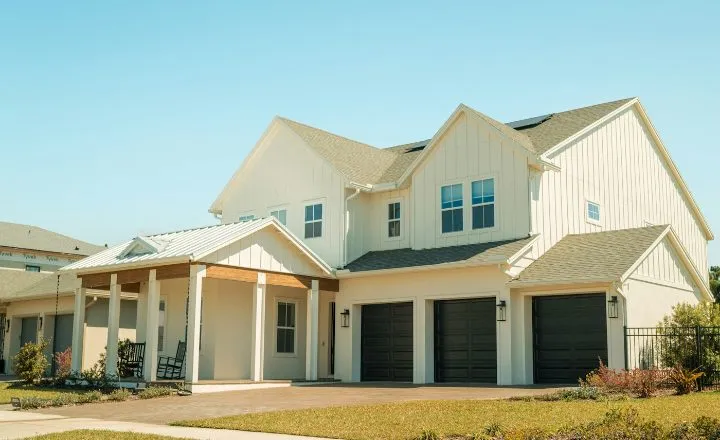 HARBOR OAKHOMESAsterStillwater RanchMontgomery, TXStarting from $449,9904 bds · 3 ba · 2480 sqft
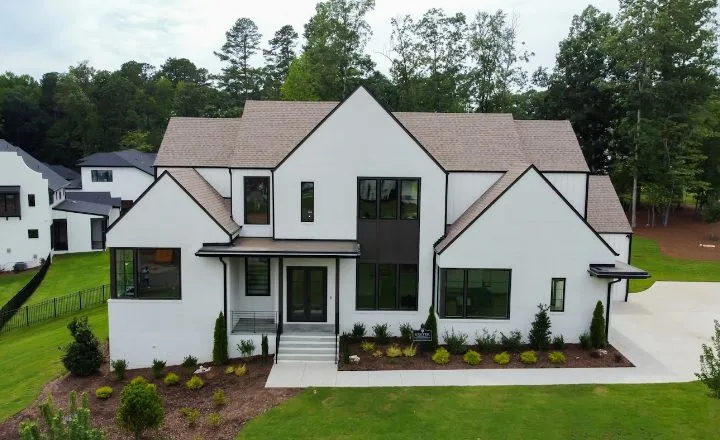 LARKSPURHOMES2207 Briar GlenPine HollowConroe, TX$412,500 Under Construction4 bds · 2.5 ba · 2215 sqftMEADOWCRESTHOMES309 Cedar ShoalsPine HollowConroe, TX$398,900 Move In Ready3 bds · 2 ba · 1880 sqft


 See all 24 images
14 Juniper BendCOPY HOME LINK
Conroe, TX - Oak Terrace
4 bds3.5 ba2690 sqft
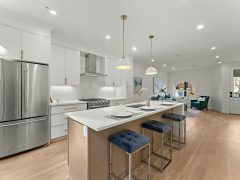
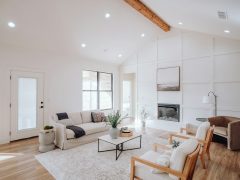
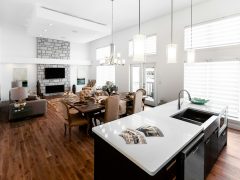
The single-story Magnolia opens to a bright kitchen with a large quartz island, a family room with a wall of windows and a covered patio. The owner’s suite sits privately at the back, with a walk-in shower and two closets.
Home Details
The features listed below are possible options for this home. Contact the builder to confirm the features, design or finishes.
- Home Type
- Single family
- Tax Rates
- 2.12%
- Primary Bedroom Location
- Downstairs
- Additional Bedroom Location
- Upstairs
- Primary Bathroom Options
- Walk-in Shower
- Roof Materials
- Shingles
- Parking Types
- Garage
- Garage Bays
- 2
- Kitchen Countertop Material
- Quartz
- Cabinet Color
- White
Floor Plan TAKE VIRTUAL TOUR
CYPRESSHOMES
AGENT COMMISSION *
Up to
3% i
+
$2,000 i
This commission information is not shown to buyers.
BUILDER PAID CLOSING COSTS *
Up to $10,000
RATES AS LOW AS *
4.99%
Natalie Brooks’s New Home SearchPrepared by Natalie BrooksSearch homes by addressSee all 24 images14 Juniper BendCOPY HOME LINK
Conroe, TX - Oak Terrace
4 bds3.5 ba2690 sqft
The single-story Magnolia opens to a bright kitchen with a large quartz island, a family room with a wall of windows and a covered patio. The owner’s suite sits privately at the back, with a walk-in shower and two closets.
Home Details
The features listed below are possible options for this home. Contact the builder to confirm the features, design or finishes.
- Home Type
- Single family
- Tax Rates
- 2.12%
- Primary Bedroom Location
- Downstairs
- Additional Bedroom Location
- Upstairs
- Primary Bathroom Options
- Walk-in Shower
- Roof Materials
- Shingles
- Parking Types
- Garage
- Garage Bays
- 2
- Kitchen Countertop Material
- Quartz
- Cabinet Color
- White
Floor Plan TAKE VIRTUAL TOUR
CYPRESSHOMES
BUILDER PAID CLOSING COSTS *
Up to $10,000
RATES AS LOW AS *
4.99%
GET MORE INFO
Natalie Brooks
Brooks Realty Group
Helping Houston-area families find the right builder, and the best incentives. Ask me about move-in ready homes!
EMAILCALLYour view in the Agent PortalYour buyer’s view on your link
Lena KowalskiNew lead
Mateo Cruz
Priscilla Nash
Dev Banerjee
Grace Whitfield
Lesson 2
Create your agent account. It’s free.
Sign up for a free real estate agent account in about two minutes. You’ll need your license number.
Then the Get set up checklist walks you through five steps: claim your Personal Link, complete your profile, save your first home search, add your photo, and share your link with a client. Each step’s button takes you straight there. Close it anytime and pick up where you left off with Continue Setup at the top of Homes.
Questions or stuck? Contact us.
Welcome to New Home Buddy
Sign up to discover how new homes get sold today.
Are you a...
Real Estate Agent
Builder Rep
First time creating an account?NoCLICK HERE to login to your existing account. Once you login you can change your account details. If your account has been disabled, please contact us at support@newhomebuddy.com to migrate your account.
CONTINUEALREADY HAVE AN ACCOUNT? LOG IN
1,284 HOMES
CYPRESSHOMES14 Juniper BendOak TerraceConroe, TX$587,400 Move In Ready4 bds · 3.5 ba · 2690 sqftHARBOR OAKHOMESAsterStillwater RanchMontgomery, TXStarting from $449,9904 bds · 3 ba · 2480 sqftGet set upYou’re all set
4 of 5 done5 of 5 doneFinish these to start getting leads from your personal link.You’re all set! Your personal link is ready to bring in leads.
Search and share progress is saved on this device.
Link copied to clipboard
Hi Natalie, it’s Jordan from the open house. Where can I see more new builds?
Great meeting you today! Here are the new homes I can help you find: a.nhb.app/u/natalie-brooks
Thanks Natalie! Looking now 🏡
Lesson 3
Set your profile up for success.
Complete your profile in Settings › Profile info so your info looks right when clients browse your links:
- Profile photo
- Phone number
- Brokerage
- Your market(s): your map and your Personal Link start there
- Your Personal Link: copy it, edit the end of the link, or download its QR code for flyers, signs and business cards
Profile info
Your personal link and account details.
Personal Link
https://a.nhb.app/u/natalie-brooks
835564
Natalie Brooks’s New Home SearchPrepared by Natalie BrooksSearch homes by address642 HOMES
CYPRESSHOMES14 Juniper BendOak TerraceConroe, TX$587,400 Move In Ready4 bds · 3.5 ba · 2690 sqftLARKSPURHOMES2207 Briar GlenPine HollowConroe, TX$412,500 Under Construction4 bds · 2.5 ba · 2215 sqftProfile info
Your personal link and account details.
Personal Link
https://a.nhb.app/u/natalie-brooks
835564
Downloads
natalie-brooks-qr.pngDownloaded
Lesson 4
The Homes page and how it works.
A tour of the Homes page and its most important features:
- The search bar
- Filters and sorting
- Drawing a map boundary, and Clear Filters to start over
- Saving a search, or handpicking homes with Pick Homes
- Viewing home details
1,284 HOMES
CYPRESSHOMES14 Juniper BendOak TerraceConroe, TX$587,400 Move In Ready4 bds · 3.5 ba · 2690 sqftHARBOR OAKHOMESAsterStillwater RanchMontgomery, TXStarting from $449,9904 bds · 3 ba · 2480 sqftHome
Location
Community
Builder
CLEAR FILTERSSEE 1,284 HOMES
1,284 HOMES
212 HOMESClear Filters
CYPRESSHOMES14 Juniper BendOak TerraceConroe, TX$587,400 Move In Ready4 bds · 3.5 ba · 2690 sqftLARKSPURHOMES2207 Briar GlenPine HollowConroe, TX$412,500 Under Construction4 bds · 2.5 ba · 2215 sqft1,284 HOMES
CYPRESSHOMES14 Juniper BendOak TerraceConroe, TX$587,400 Move In Ready4 bds · 3.5 ba · 2690 sqftHARBOR OAKHOMESAsterStillwater RanchMontgomery, TXStarting from $449,9904 bds · 3 ba · 2480 sqftLARKSPURHOMES2207 Briar GlenPine HollowConroe, TX$412,500 Under Construction4 bds · 2.5 ba · 2215 sqftCYPRESSHOMESMagnoliaOak TerraceConroe, TXStarting from $498,9004 bds · 3 ba · 2604 sqftLARKSPURHOMES2207 Briar GlenPine HollowConroe, TX$412,500 Under Construction4 bds · 2.5 ba · 2215 sqftHARBOR OAKHOMESAsterStillwater RanchMontgomery, TXStarting from $449,9904 bds · 3 ba · 2480 sqftCYPRESSHOMESMagnoliaOak TerraceConroe, TXStarting from $498,9004 bds · 3 ba · 2604 sqftCYPRESSHOMES14 Juniper BendOak TerraceConroe, TX$587,400 Move In Ready4 bds · 3.5 ba · 2690 sqftCYPRESSHOMES14 Juniper BendOak TerraceConroe, TX$587,400 Move In Ready4 bds · 3.5 ba · 2690 sqftCYPRESSHOMESMagnoliaOak TerraceConroe, TXStarting from $498,9004 bds · 3 ba · 2604 sqftHARBOR OAKHOMESAsterStillwater RanchMontgomery, TXStarting from $449,9904 bds · 3 ba · 2480 sqftLARKSPURHOMES2207 Briar GlenPine HollowConroe, TX$412,500 Under Construction4 bds · 2.5 ba · 2215 sqft64 HOMESClear Filters
LARKSPURHOMES2207 Briar GlenPine HollowConroe, TX$412,500 Under Construction4 bds · 2.5 ba · 2215 sqftHARBOR OAKHOMESAsterStillwater RanchMontgomery, TXStarting from $449,9904 bds · 3 ba · 2480 sqftSave and Share New Home Search
1Search Type2Name Search3Share Search
Choose Your Search Type
What kind of search are you creating?
Find New Clients (Lead Gen Search)
Create for a Specific Client (Client Search)
Name your search
This name will show up on the shared link and in your portal.
Display Name *3+ Beds up to $450K near Conroe3+ Beds up to $450K near Conroe
COPY SEARCH LINKCANCELBACKNEXTCREATE SEARCH
Link copied to clipboard
Lesson 5
How to use the search bar.
The search bar is especially good for:
- Specific addresses: builder contact info, scheduling a tour, and the commission, bonus and incentives on that home
- Cities, ZIP codes, counties and communities. Each one you search becomes a location filter you can mix with others, like the MLS.
- Your clients and your saved searches
1,284 HOMES
CYPRESSHOMES14 Juniper BendOak TerraceConroe, TX$587,400 Move In Ready4 bds · 3.5 ba · 2690 sqftHARBOR OAKHOMESAsterStillwater RanchMontgomery, TXStarting from $449,9904 bds · 3 ba · 2480 sqftLesson 6
What home and plan details look like.
The home details page in depth: photos (See All Images shows every one), location, beds, baths and garage, floor plan and virtual tour link, community information, and your contact information.
You also see the builder’s incentives: agent commission, bonus to selling agent, builder-paid closing costs and interest rate, each with a short explanation. Last Checked and Last Updated show how fresh the listing is. Your clients never see commission or bonus on the links you share.
See all 24 images14 Juniper BendCOPY HOME LINK
Conroe, TX - Oak Terrace
4 bds3.5 ba2690 sqft
The single-story Magnolia opens to a bright kitchen with a large quartz island, a family room with a wall of windows and a covered patio. The owner’s suite sits privately at the back, with a walk-in shower and two closets.
Home Details
The features listed below are possible options for this home. Contact the builder to confirm the features, design or finishes.
- Home Type
- Single family
- Tax Rates
- 2.12%
- Primary Bedroom Location
- Downstairs
- Additional Bedroom Location
- Upstairs
- Primary Bathroom Options
- Walk-in Shower
- Roof Materials
- Shingles
- Parking Types
- Garage
- Garage Bays
- 2
- Kitchen Countertop Material
- Quartz
- Cabinet Color
- White
Floor Plan TAKE VIRTUAL TOUR
CYPRESSHOMES
AGENT COMMISSION *
Up to
3% i
+
$2,000 i
This commission information is not shown to buyers.
BUILDER PAID CLOSING COSTS *
Up to $10,000
RATES AS LOW AS *
4.99%
Natalie Brooks’s New Home SearchPrepared by Natalie BrooksSearch homes by addressSee all 24 images14 Juniper BendCOPY HOME LINK
Conroe, TX - Oak Terrace
4 bds3.5 ba2690 sqft
The single-story Magnolia opens to a bright kitchen with a large quartz island, a family room with a wall of windows and a covered patio. The owner’s suite sits privately at the back, with a walk-in shower and two closets.
Home Details
The features listed below are possible options for this home. Contact the builder to confirm the features, design or finishes.
- Home Type
- Single family
- Tax Rates
- 2.12%
- Primary Bedroom Location
- Downstairs
- Additional Bedroom Location
- Upstairs
- Primary Bathroom Options
- Walk-in Shower
- Roof Materials
- Shingles
- Parking Types
- Garage
- Garage Bays
- 2
- Kitchen Countertop Material
- Quartz
- Cabinet Color
- White
Floor Plan TAKE VIRTUAL TOUR
CYPRESSHOMES
BUILDER PAID CLOSING COSTS *
Up to $10,000
RATES AS LOW AS *
4.99%
GET MORE INFO
Natalie Brooks
Brooks Realty Group
Helping Houston-area families find the right builder, and the best incentives. Ask me about move-in ready homes!
EMAILCALLYour view in the Agent PortalYour buyer’s view on your link
See all 24 images14 Juniper BendCOPY HOME LINK
Conroe, TX - Oak Terrace
4 bds3.5 ba2690 sqft
The single-story Magnolia opens to a bright kitchen with a large quartz island, a family room with a wall of windows and a covered patio. The owner’s suite sits privately at the back, with a walk-in shower and two closets.
Home Details
The features listed below are possible options for this home. Contact the builder to confirm the features, design or finishes.
- Home Type
- Single family
- Tax Rates
- 2.12%
- Primary Bedroom Location
- Downstairs
- Additional Bedroom Location
- Upstairs
- Primary Bathroom Options
- Walk-in Shower
- Roof Materials
- Shingles
- Parking Types
- Garage
- Garage Bays
- 2
- Kitchen Countertop Material
- Quartz
- Cabinet Color
- White
Floor Plan TAKE VIRTUAL TOUR
CYPRESSHOMES
AGENT COMMISSION *
Up to
3% i
+
$2,000 i
This commission information is not shown to buyers.
BUILDER PAID CLOSING COSTS *
Up to $10,000
RATES AS LOW AS *
4.99%
Agent CommissionThe commission the builder offers the buyer’s agent on this home.
Bonus to Selling Agent (BTSA)An extra bonus the builder offers the buyer’s agent, on top of commission.
Lesson 7
How the filters work, and what makes them unique.
Our filters help your clients find the right home or plan faster, including filters for builder incentives no other site has:
- Location: mix any cities, ZIP codes and counties, like the MLS
- Build Status: move-in ready inventory, or plans a builder will build
- Builder: choose builders in your markets and see how many reps you’re connected with at each
- Incentives: interest rate and builder-paid closing costs
- Community: amenities (including half- and one-acre lots), tax rate, HOA and schools
1,284 HOMES
242 HOMESClear Filters
LARKSPURHOMES2207 Briar GlenPine HollowBoerne, TX$412,500 Under Construction4 bds · 2.5 ba · 2215 sqftCYPRESSHOMES14 Juniper BendOak TerraceNew Braunfels, TX$587,400 Move In Ready4 bds · 3.5 ba · 2690 sqftLocation
New Braunfels, TX
Boerne, TX
78132
Community
CLEAR FILTERSSEE 1,284
531
867
242 HOMES
2
3
1,284 HOMES
CYPRESSHOMES14 Juniper BendOak TerraceConroe, TX$587,400 Move In Ready4 bds · 3.5 ba · 2690 sqftHARBOR OAKHOMESAsterStillwater RanchMontgomery, TXStarting from $449,9904 bds · 3 ba · 2480 sqft486 HOMES
CYPRESSHOMES14 Juniper BendOak TerraceConroe, TX$587,400 Move In Ready4 bds · 3.5 ba · 2690 sqftLARKSPURHOMES2207 Briar GlenPine HollowConroe, TX$412,500 Under Construction4 bds · 2.5 ba · 2215 sqft798 HOMES
HARBOR OAKHOMESAsterStillwater RanchMontgomery, TXStarting from $449,9904 bds · 3 ba · 2480 sqftCYPRESSHOMESMagnoliaOak TerraceConroe, TXStarting from $389,9903 bds · 2 ba · 1840 sqft1,284 HOMES
64 HOMESClear Filters
HARBOR OAKHOMESAsterStillwater RanchMontgomery, TXStarting from $449,9904 bds · 3 ba · 2480 sqftCYPRESSHOMES14 Juniper BendOak TerraceConroe, TX$587,400 Move In Ready4 bds · 3.5 ba · 2690 sqftCommunity
CLEAR FILTERSSEE 1,284
64 HOMES
Lesson 8
Create and organize your clients.
Keep your contacts in one place and build curated searches for each client that update in real time. Creating a client automatically creates a Client Search for them, and people who sign up on your links appear under New Leads. Organize clients into folders (and subfolders), and open a client to see their favorites, activity and notes.
More in the guide to clients and Client Searches.
My ClientsNEW FOLDER
Click or tap and drag a client to a folder to organize your clients
No folders found.
Avery Lawson
Jordan Pike
Mia Castillo
Owen Price
Priya Shah
Sam Whitaker
Tessa Grant
Wes Moreno
Create Client
Your Data, Your Control. Client information is private — we never sell or misuse it. Learn more in our Privacy Policy
Primary Contact *
First Name *Avery
Last Name *Lawson
Emailavery.lawson@example.com
Phone Number(555) 010-4471
NotesOne-story in Conroe ISD, under $475K.Needs to move by spring.
CANCELSAVE
My ClientsNEW FOLDER
Click or tap and drag a client to a folder to organize your clients
Relocating from California2
3
Close by Spring1
Avery Lawson
Jordan Pike
Mia Castillo
Owen Price
Priya Shah
Sam Whitaker
Tessa Grant
Wes Moreno
Lesson 9
Create a Client Search or Lead Gen Search.
Create a search for a specific client (Client Search), or a Lead Gen Search to share on social media and generate new leads. Want a shortlist instead? Pick Homes lets you handpick up to 100 homes.
To edit a search, open its ⋮ menu and choose View/Edit Search, change the filters, then click Save Changes. The link stays the same. Each search shows its views, home clicks, favorites and new leads, and you get a Recent Activity email when clients browse.
64 HOMESClear Filters
LARKSPURHOMES2207 Briar GlenPine HollowConroe, TX$412,500 Under Construction4 bds · 2.5 ba · 2215 sqftHARBOR OAKHOMESAsterStillwater RanchMontgomery, TXStarting from $449,9904 bds · 3 ba · 2480 sqftSave and Share New Home Search
1Search Type2Name Search3Share Search
Choose Your Search Type
What kind of search are you creating?
Find New Clients (Lead Gen Search)
Create for a Specific Client (Client Search)
Name your search
This name will show up on the shared link and in your portal.
Display Name *3+ Beds up to $450K near Conroe3+ Beds up to $450K near Conroe
COPY SEARCH LINKCANCELBACKNEXTCREATE SEARCH
Link copied to clipboard
My Searches
Click or tap and drag a search to a folder to organize your searches
No folders found.
Personal Link
https://a.nhb.app/u/natalie-brooks
186 HOMES64 HOMESClear Filters
CYPRESSHOMES14 Juniper BendOak TerraceConroe, TX$587,400 Move In Ready4 bds · 3.5 ba · 2690 sqftLARKSPURHOMES2207 Briar GlenPine HollowConroe, TX$412,500 Under Construction4 bds · 2.5 ba · 2215 sqftHARBOR OAKHOMESAsterStillwater RanchMontgomery, TXStarting from $449,9904 bds · 3 ba · 2480 sqftCYPRESSHOMESMagnoliaOak TerraceConroe, TXStarting from $498,9004 bds · 3.5 ba · 2690 sqftMy SearchesNEW FOLDER
Click or tap and drag a search to a folder to organize your searches
Conroe buyers
First-time buyers
Personal Link
https://a.nhb.app/u/natalie-brooks
412268249
Move-in ready under $400K
14892116
Builder-paid closing costs in Conroe ISD
634153
One-story homes with a 3-car garage
271221
Lesson 10
Handpick homes with Pick Homes.
Filters are a blunt tool. Pick Homes lets you handpick exactly the homes that make the cut, up to 100, and send them as one list.
- On Homes, click Pick Homes, then tap homes to select them, or find one by address
- Click View X Selected Homes to review your shortlist
- Click Save X Homes and save it as a Client Search for one client, or a Lead Gen Search to share publicly
Your client sees only the homes you picked, branded to you, and you’re notified when they favorite or ask about one. Three to five homes feels curated; twenty feels like homework.
1,284 HOMES
CYPRESSHOMES14 Juniper BendOak TerraceConroe, TX$587,400 Move In Ready4 bds · 3.5 ba · 2690 sqftMEADOWCRESTHOMES309 Cedar ShoalsPine HollowConroe, TX$398,900 Move In Ready3 bds · 2 ba · 1880 sqftHARBOR OAKHOMESAsterStillwater RanchMontgomery, TXStarting from $449,9904 bds · 3 ba · 2480 sqftLARKSPURHOMES2207 Briar GlenPine HollowConroe, TX$412,500 Under Construction4 bds · 2.5 ba · 2215 sqft1
2
3 SELECTED HOMESFIND AND UPDATE SELECTED HOMES
1
2
3 HOMES
1,284 HOMESClear Selected Homes
CYPRESSHOMES14 Juniper BendOak TerraceConroe, TX$587,400 Move In Ready4 bds · 3.5 ba · 2690 sqftMEADOWCRESTHOMES309 Cedar ShoalsPine HollowConroe, TX$398,900 Move In Ready3 bds · 2 ba · 1880 sqftHARBOR OAKHOMESAsterStillwater RanchMontgomery, TXStarting from $449,9904 bds · 3 ba · 2480 sqftLARKSPURHOMES2207 Briar GlenPine HollowConroe, TX$412,500 Under Construction4 bds · 2.5 ba · 2215 sqft3 HOMESClear Selected Homes
CYPRESSHOMES14 Juniper BendOak TerraceConroe, TX$587,400 Move In Ready4 bds · 3.5 ba · 2690 sqftHARBOR OAKHOMESAsterStillwater RanchMontgomery, TXStarting from $449,9904 bds · 3 ba · 2480 sqftLARKSPURHOMES2207 Briar GlenPine HollowConroe, TX$412,500 Under Construction4 bds · 2.5 ba · 2215 sqftSave and Share 2 Homes
1Search Type2Name Search3Share Search
Choose Your Search Type
What kind of search are you creating?
Find New Clients (Lead Gen Search)
Create for a Specific Client (Client Search)
Name your search
This name will show up on the shared link and in your portal.
CANCELBACKNEXTCREATE SEARCH
Lesson 11
Prospect for leads like a pro.
- Create your Personal Link: an up-to-date list of every home and plan, branded to you
- Create a Lead Gen Search to share a set of homes publicly and reach people you don’t know yet
- Share an individual home link when you showcase a home on social media
- Organize clients and leads into folders
Every link stays up to date. Visitors are asked to sign up after 90 seconds of browsing, when they save a favorite, or when they ask about a home. Each sign-up becomes your lead right away, with an email to you and a search made for them.
Natalie Brooks’s New Home SearchPrepared by Natalie BrooksSearch homes by address1,284 HOMES
CYPRESSHOMES14 Juniper BendOak TerraceConroe, TX$587,400 Move In Ready4 bds · 3.5 ba · 2690 sqftHARBOR OAKHOMESAsterStillwater RanchMontgomery, TXStarting from $449,9904 bds · 3 ba · 2480 sqftLARKSPURHOMES2207 Briar GlenPine HollowConroe, TX$412,500 Under Construction4 bds · 2.5 ba · 2215 sqftMEADOWCRESTHOMES309 Cedar ShoalsPine HollowConroe, TX$398,900 Move In Ready3 bds · 2 ba · 1880 sqftNatalie Brooks’s New Home SearchPrepared by Natalie BrooksSearch homes by address1,284 HOMES
CYPRESSHOMES14 Juniper BendOak TerraceConroe, TX$587,400 Move In Ready4 bds · 3.5 ba · 2690 sqftHARBOR OAKHOMESAsterStillwater RanchMontgomery, TXStarting from $449,9904 bds · 3 ba · 2480 sqftLARKSPURHOMES2207 Briar GlenPine HollowConroe, TX$412,500 Under Construction4 bds · 2.5 ba · 2215 sqftCYPRESSHOMES18 Juniper BendOak TerraceConroe, TX$569,900 Move In Ready4 bds · 3.5 ba · 2690 sqftSign up now to see more homes.
First Name *LenaLast Name *KowalskiEmail *lena@example.comPhone Number *(555) 010-4471Remember my info on this deviceCANCELSIGN UP
Lena KowalskiNew lead
Mateo Cruz
Priscilla Nash
Dev Banerjee
Grace Whitfield
Lesson 12
See all your activity in one place.
The Activity tab in the left menu shows everything across your account in one feed, grouped by day: homes viewed and favorited, searches opened, forms submitted, and clicks on your Personal Link. Click any event to jump to that client, home or search.
You also get a Recent Activity email. Every 30 minutes, one email covers whatever your clients did in that window, and nothing is sent when it’s quiet.
1,284 HOMES
CYPRESSHOMES14 Juniper BendOak TerraceConroe, TX$587,400 Move In Ready4 bds · 3.5 ba · 2690 sqftHARBOR OAKHOMESAsterStillwater RanchMontgomery, TXStarting from $449,9904 bds · 3 ba · 2480 sqftActivity
Recent activity across your searches
Today
LKLena Kowalski4 events
lena@example.com(555) 010-4821VIEW CLIENT
Lena Kowalski favorited 14 Juniper Bend on Search Created for Lena KowalskiToday, 9:12 AMVIEW HOME
Lena Kowalski viewed 14 Juniper Bend on Search Created for Lena KowalskiToday, 9:10 AMVIEW HOME
Lena Kowalski viewed 2207 Briar Glen on Search Created for Lena KowalskiToday, 9:06 AMVIEW HOME
Lena Kowalski opened Search Created for Lena Kowalski Today, 9:05 AM
MCMateo Cruz2 events
Yesterday
PNPriscilla Nash3 events
DBDev Banerjee1 event
New Home BuddyRecent Activity – New Home Buddy – Great news Natalie – you have recent activity on New Home Buddy!10:42 AM
New Home BuddyRecent Activity – New Home Buddy – Great news Natalie – you have recent activity on New Home Buddy!10:12 AM
Brooks Realty GroupTeam meeting moved to Thursday – Same room, 9 AM. Bring your pipeline numbers.9:58 AM
New Home BuddyRecent Activity – New Home Buddy – Great news Natalie – you have recent activity on New Home Buddy!9:42 AM
Mateo CruzRe: Saturday showings – Thanks! Saturday at 11 works for us.8:30 AM
Recent Activity – New Home Buddy
New Home Buddyto me10:42 AM
NEW HOME BUDDY
Great news Natalie – you have recent activity on New Home Buddy!
Here’s a breakdown:
| Client Name | Number of Home Views | Number of Home Favorites |
|---|---|---|
| Lena Kowalski | 8 | 2 |
| Mateo Cruz | 3 | 0 |
| Priscilla Nash | 1 | 1 |
View on New Home Buddy
Lesson 13
Builder Connections: your shortcut to stronger relationships.
Connect with the builder reps you like working with, and the rep becomes your contact on the homes they’re authorized to sell.
- Only agents can start a connection, so you stay in control
- Once connected, the rep gets an email when your clients show interest in their homes
- Use Quick Notify on any home to reach the rep instantly
- A rep’s Personal Link opens in your own portal, so you stay signed in. Connect from the button at the top, or the handshake icon on any home.
Your buyer only ever sees your contact info, and their contact info is never shared with builders. Find it under Builder Connections, or click Connect on a rep’s Personal Link. Full Builder Connection guide.
 Lauren Pierce7EmailCallLarkspur Homes - ConroeVIEW HOMES
Connect with a Builder Rep
Connect with the builder reps you like working with. They’ll be looped in when your clients show interest—but your contact info stays front and center, and your client’s info stays protected.
Ha
 Harrison Voss18Cypress Landing Homes - Houston
Harrison Voss’s New Home SearchCONNECT WITH HARRISON VOSSSearch Created for Natalie BrooksPrepared by Harrison VossSearch homes by address
Describe your home searchPriceBedsBathsBuild StatusMoreVIEW FAVORITED HOMES
19 HOMES
CYPRESSHOMESHARRISON14 Juniper BendOak TerraceConroe, TX$587,400 Move In Ready4 bds · 3.5 ba · 2690 sqftCYPRESSHOMESHARRISONAsterOak TerraceConroe, TXStarting from $449,9904 bds · 3 ba · 2480 sqftCYPRESSHOMESHARRISON18 Juniper BendOak TerraceConroe, TX$468,900 Under Construction4 bds · 2.5 ba · 2215 sqftCYPRESSHOMESHARRISON402 Cedar RiseStillwater RanchMontgomery, TX$529,000 Move In Ready4 bds · 3.5 ba · 2690 sqftConnected with Harrison VossYou both get an email. Your buyers still see only you.
Harrison Voss18EmailCallCypress Landing Homes - HoustonVIEW HOMES Daniel Ruiz11EmailHarbor Oak Builders - Houston + ConroeVIEW HOMESLauren Pierce7EmailCallLarkspur Homes - ConroeVIEW HOMESSearch Created for Natalie BrooksPrepared by Harrison VossSearch homes by address
6 HOMES
CYPRESSHOMESHARRISON14 Juniper BendOak TerraceConroe, TX$587,400 Move In Ready4 bds · 3.5 ba · 2690 sqftCYPRESSHOMESHARRISONAsterStillwater RanchMontgomery, TXStarting from $449,9904 bds · 3 ba · 2480 sqftCYPRESSHOMESHARRISON2207 Briar GlenPine HollowConroe, TX$412,500 Under Construction4 bds · 2.5 ba · 2215 sqftCYPRESSHOMESHARRISON22 Juniper BendOak TerraceConroe, TX$544,900 Move In Ready4 bds · 3.5 ba · 2690 sqft42 HOMES
CYPRESSHOMES14 Juniper BendOak TerraceConroe, TX$587,400 Move In Ready4 bds · 3.5 ba · 2690 sqftCYPRESSHOMES2207 Briar GlenPine HollowConroe, TX$412,500 Under Construction4 bds · 2.5 ba · 2215 sqftHarrison Voss’s Builder Portal1Natalie Brooks wants you to contact them about a home14 Juniper Bend in Oak Terracenow
 Buyer Needs RequestMarcus Reed submitted a Buyer Needs Request. Tap to view their criteria and respond.1h
 Maria Delgado connected with youYou’re now their go-to rep. You’ll get their buyer activity and Buyer Needs Requests directly.3h
Lesson 14
Tell builders exactly what your buyer needs.
When filters aren’t enough, send a Buyer Needs Request and get organized responses in your Agent Portal.
- Choose your market and the builders to notify
- Describe your buyer’s needs: price, area, must-haves, timeline
- Optionally draw a map outline
- Get every builder’s response in one inbox-style view, open the homes each one sent, and close the request when you’re done
If you’re connected with a rep at a builder, your request goes straight to them. Full Buyer Needs Request guide.
No RepliesClient is looking for a home under $2,900/month with a community pool, low HOA, near Conroe ISD. Wants a corner lot and fenced yard.4:59 PM
1 ReplySingle story with a pool, Montgomery or Willis, up to $500KOct 4
2 RepliesFirst-time buyers, USDA eligible, low tax rate north of HoustonSep 28
No RepliesRelocating family, 5 beds, game room, ready in 60 daysSep 21
1 ReplyDownsizing couple, 1-story, under $380K, near The WoodlandsSep 14
What’s your buyer looking for in a home?
Your message will be sent to the builders you select. If you’re connected with a rep at that builder, it will go directly to them — otherwise, it will go to the builder’s default contact.
1
2
3
4 builders
ATTACH MAP DRAWING FOR BUILDERSUPDATE MAP DRAWING FOR BUILDERS
CANCELSEND TO 0
1
2
3
4 BUILDERS
Buyer Needs Request Created
1 ReplyClient is looking for a home under $2,900/month with a community pool, low HOA, near Conroe ISD. Wants a corner lot5:00 PM
2 RepliesSingle story with a pool, Montgomery or Willis, up to $500KOct 4
1 ReplyFirst-time buyers, USDA eligible, low tax rate north of HoustonSep 28
No RepliesRelocating family, 5 beds, game room, ready in 60 daysSep 21
Client is looking for a home under $2,900/month with a community pool, low HOA, near Conroe ISD. Wants a corner lot and fenced… Read More
CLOSE REQUESTBUILDER RESPONSES
Harrison Voss from Cypress Landing Homes sent 2 homesOctober 12, 2026 5:00 PMHi Natalie! Check out these 2 homes. They just came on the market and I think they’re perfect for your client. Plus…Read MoreVIEW 2 HOMESHarrison Voss EmailCypress Landing Homes
2 HOMES
CYPRESSHOMESHARRISON14 Juniper BendOak TerraceConroe, TX$587,400 Move In Ready4 bds · 3.5 ba · 2690 sqftCYPRESSHOMESHARRISON2207 Briar GlenPine HollowConroe, TX$412,500 Under Construction4 bds · 2.5 ba · 2215 sqftLesson 15
Never miss a builder event.
The Events calendar in your Agent Portal lists builder events in your market: grand openings, broker lunches, model home tours, realtor previews and continuing education classes. Click an event to see the details.
The same events are on our website’s Events page.
TAPAS & NETWORKING – REAL ESTATE MIXER
Thursday, October 8 · 5:30 – 8:30pm
Casa Verde, 410 Market St., Conroe, TX 77301
Join us for a relaxed evening of connections and conversation with Conroe’s real estate community.
Builder: CYPRESS LANDING HOMES
Date: 10/8/2026 · 5:30 – 8:30 PM
More detailsCopy to my calendar